> ## Documentation Index
> Fetch the complete documentation index at: https://docs.lumi.new/llms.txt
> Use this file to discover all available pages before exploring further.
# AI
> Integrate powerful AI models into your project
The **AI** in Lumi’s Toolbox allows you to seamlessly embed **large language models (LLMs)** into your own projects. Through natural-language prompts, you can easily activate and configure AI capabilities without complex setup steps — making model integration **faster, smarter, and more intuitive**.
## Supported AI Models
Lumi currently supports multiple models from **Google Gemini** and **OpenAI GPT** families. Each model has different performance and pricing tiers to fit diverse use cases:
| **Model** | **Tier** | **Recommended Use** |
| :-------------------------------------- | :----------------- | :----------------------------------------------------------------- |
| **Gemini 2.5 Flash** | Mid-tier (Default) | General-purpose assistant for balanced reasoning and efficiency |
| **Gemini 2.5 Pro** | High-tier | Advanced reasoning and complex analysis |
| **Gemini 2.5 Flash Lite** | Entry-tier | Large-scale, low-latency tasks such as text classification |
| **Gemini 2.5 Flash Image(Nano Banana)** | Mid-tier (Visual) | Image generation and creative design tasks |
| **Gemini 3 Pro Image(Nano Banana Pro)** | High-tier (Visual) | Create and edit images with high level of precision and control |
| **GPT-5** | High-tier | Complex reasoning and decision-making applications |
| **GPT-5 Mini** | Mid-tier | Moderate-complexity workflows and automation tasks |
| **GPT-5 Nano** | Entry-tier | High-volume, lightweight tasks |
| **GPT-4o** | High-tier | Advanced multimodal understanding and high-quality text generation |
You can mix and match models in one project — for example, using Gemini for fast responses and GPT for creative generation.
## Enable AI Models
By default, AI capabilities are **disabled**. You can activate them in one of three ways:
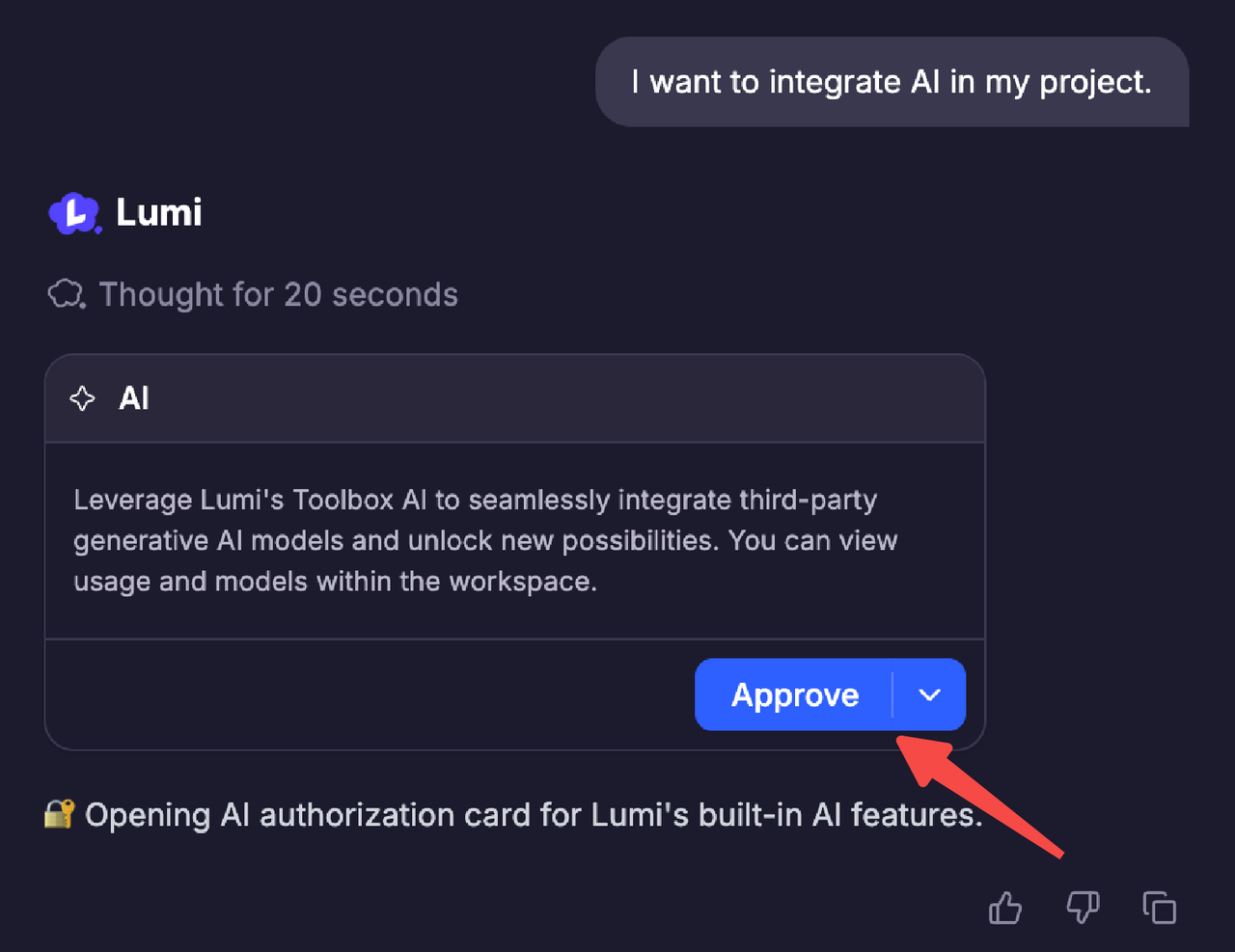
1. Via **conversation** — when you ask to integrate or use AI features, Lumi will prompt you to enable AI.
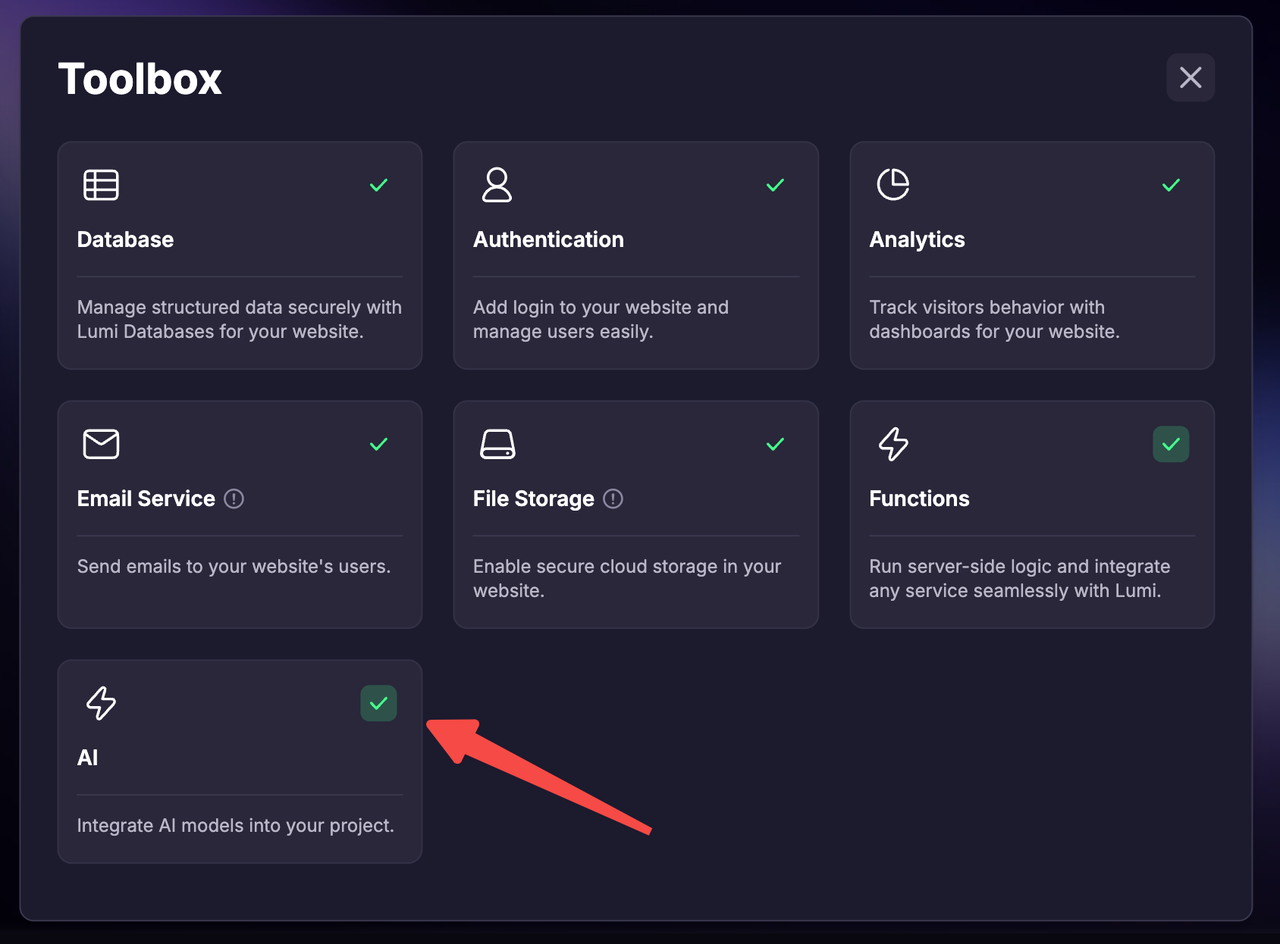
 2. From the **Toolbox** on the homepage
 3. From your **workspace**
 When you enable AI without specific requirements, Lumi automatically integrates the **default model (Gemini 2.5 Flash)**. You only need to request it in the conversation to switch models.
## Manage AI Models
A dedicated **AI** panel is now available in your workspace, providing full visibility of your AI usage.
When you enable AI without specific requirements, Lumi automatically integrates the **default model (Gemini 2.5 Flash)**. You only need to request it in the conversation to switch models.
## Manage AI Models
A dedicated **AI** panel is now available in your workspace, providing full visibility of your AI usage.
 Here, you can:
* Monitor real-time model calls and usage, with filtering options by time range.
* View detailed Tool Credit spending for each integrated model.
## Subscription & Billing
* No subscription requirement — all Lumi users can access AI integration.
* AI usage is billed together with **Tool Credit**.
* All AI usage within the project is charged to the creator's Tool Credit balance, and project users bear no costs.
Here, you can:
* Monitor real-time model calls and usage, with filtering options by time range.
* View detailed Tool Credit spending for each integrated model.
## Subscription & Billing
* No subscription requirement — all Lumi users can access AI integration.
* AI usage is billed together with **Tool Credit**.
* All AI usage within the project is charged to the creator's Tool Credit balance, and project users bear no costs.