> ## Documentation Index
> Fetch the complete documentation index at: https://docs.lumi.new/llms.txt
> Use this file to discover all available pages before exploring further.
> Publish your site and showcase it to the world.
# Publish
Lumi streamlines publishing your project to the web, allowing you to easily share it with anyone. Once live, you can continually refine your site with instant updates and even connect a custom domain for a professional touch.
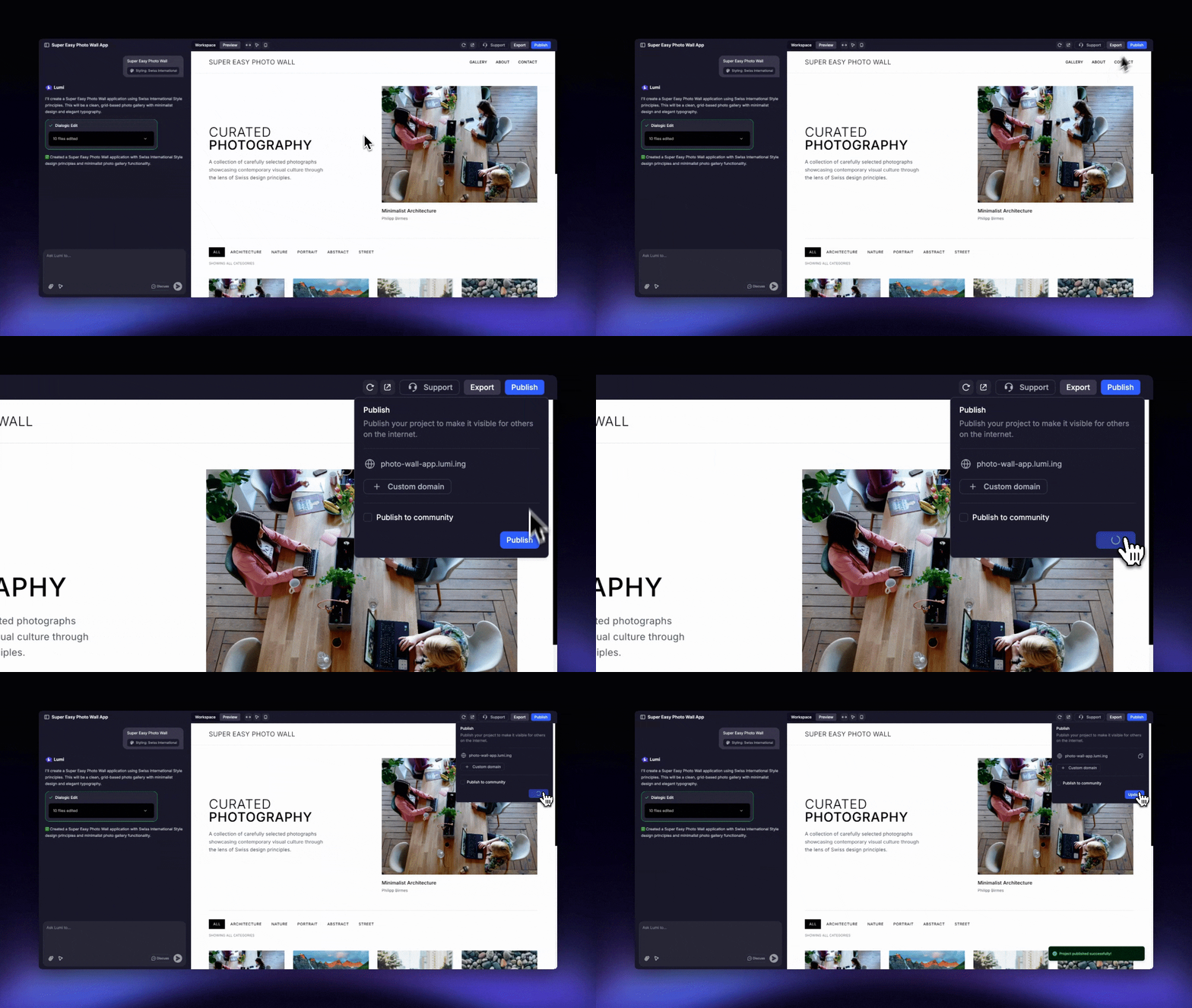 Once published, your website will become publicly accessible to anyone with the link. Be sure you're ready for the spotlight before you hit publish
Start by clicking the "Publish" button, located in the top-right corner of your project.
Select "Publish" from the dropdown menu to begin the launch. This process is swift, typically taking less than a minute.
You'll be notified the moment it's ready. Your website is now live and can be shared with anyone—simply send them the link!
Keep refining your website. When you're ready to push your changes live, select "Update" from the publish menu.
For a polished, on-brand appearance, connect a custom domain by following our straightforward guide.
## FAQs
Publishing errors are typically caused by an underlying build issue that prevents the current version of your site from functioning. The best first step is to ask the AI assistant to investigate the error for you.
Changes made in the editor do not automatically appear on your live site. To make your edits public, you must select Update from the publish dropdown menu.
Currently, there is no direct "unpublish" button. The only way to take a public link offline is to delete the project. As a workaround, you can "Remix" the project to create a private copy to continue working on, and then delete the original.
Once published, your website will become publicly accessible to anyone with the link. Be sure you're ready for the spotlight before you hit publish
Start by clicking the "Publish" button, located in the top-right corner of your project.
Select "Publish" from the dropdown menu to begin the launch. This process is swift, typically taking less than a minute.
You'll be notified the moment it's ready. Your website is now live and can be shared with anyone—simply send them the link!
Keep refining your website. When you're ready to push your changes live, select "Update" from the publish menu.
For a polished, on-brand appearance, connect a custom domain by following our straightforward guide.
## FAQs
Publishing errors are typically caused by an underlying build issue that prevents the current version of your site from functioning. The best first step is to ask the AI assistant to investigate the error for you.
Changes made in the editor do not automatically appear on your live site. To make your edits public, you must select Update from the publish dropdown menu.
Currently, there is no direct "unpublish" button. The only way to take a public link offline is to delete the project. As a workaround, you can "Remix" the project to create a private copy to continue working on, and then delete the original.