> ## Documentation Index
> Fetch the complete documentation index at: https://docs.lumi.new/llms.txt
> Use this file to discover all available pages before exploring further.
# Secrets
> Use secrets to centrally and securely manage your API keys.
Lumi's **Secrets** allow you to store and manage your API keys in one place, whether added during a conversation or manually in the workspace.
## Add API Keys
### In Conversation
You can ask to add an API key directly during a conversation. In **Agent Mode**, a secure input card will automatically appear, allowing you to safely enter your API key.
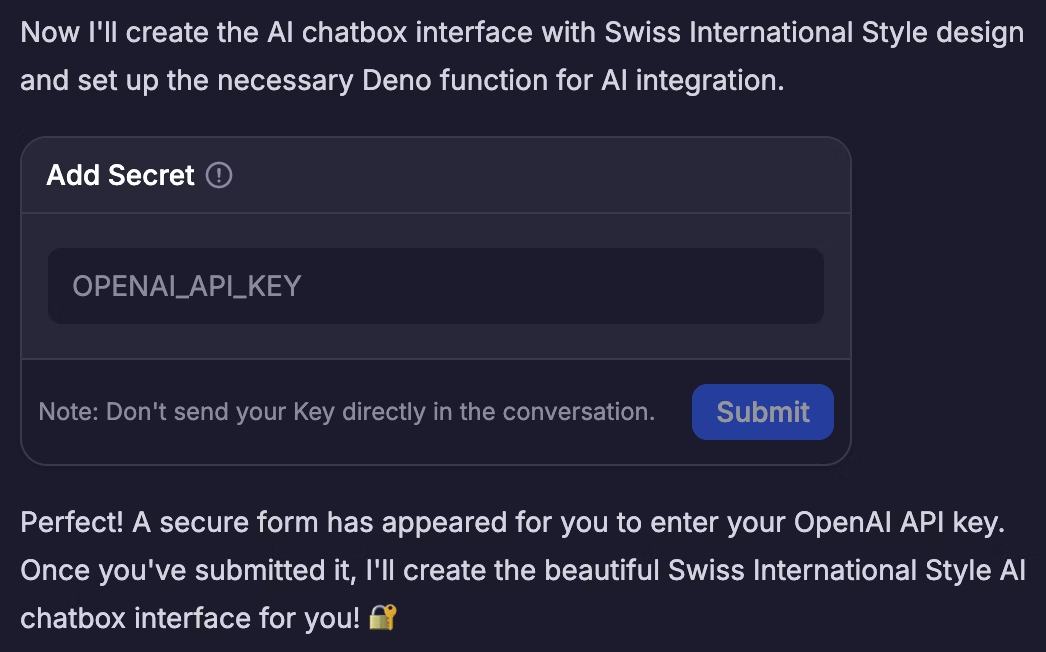 Please **do not** enter your API key directly into the chat message. Always use the provided secure card.
### In Workspace
You can manually add new API keys in Workspace - Secrets.
Please **do not** enter your API key directly into the chat message. Always use the provided secure card.
### In Workspace
You can manually add new API keys in Workspace - Secrets.
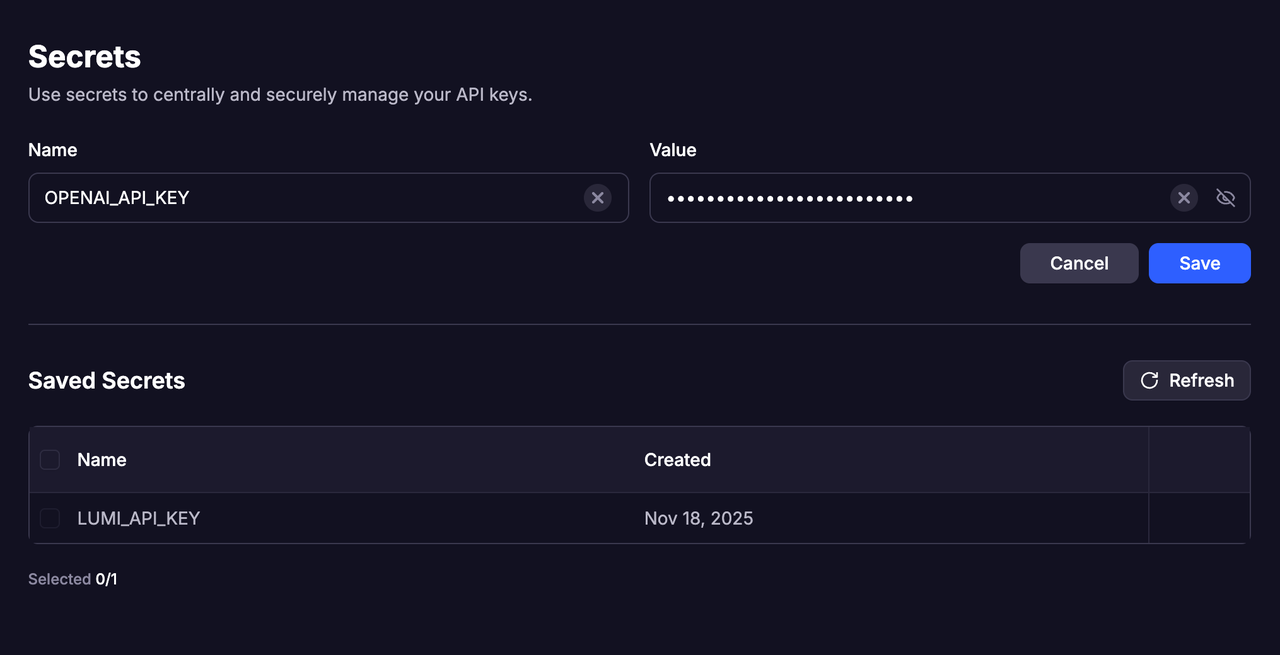 * Each key must have a **unique name**. If you try to add a new key with the same name as an existing one, the new key will **replace** the old one.
* Multiple API keys can be saved, allowing flexible use across different scenarios.
Only letters, underscores (`_`), hyphens (`-`), and numbers are allowed. The name must include **at least one letter**.
## Manage Keys
* You can view all saved API keys at any time in Workspace - Secrets.
* When a key is no longer needed, you can delete it directly to keep your workspace organized and secure.
## Call the APIs
* All API saved in the project's Secret panel can be directly called and used within that project.
* You’ll need to clearly specify the **exact API name** you want Lumi to use during the conversation.
* Each key must have a **unique name**. If you try to add a new key with the same name as an existing one, the new key will **replace** the old one.
* Multiple API keys can be saved, allowing flexible use across different scenarios.
Only letters, underscores (`_`), hyphens (`-`), and numbers are allowed. The name must include **at least one letter**.
## Manage Keys
* You can view all saved API keys at any time in Workspace - Secrets.
* When a key is no longer needed, you can delete it directly to keep your workspace organized and secure.
## Call the APIs
* All API saved in the project's Secret panel can be directly called and used within that project.
* You’ll need to clearly specify the **exact API name** you want Lumi to use during the conversation.