> ## Documentation Index
> Fetch the complete documentation index at: https://docs.lumi.new/llms.txt
> Use this file to discover all available pages before exploring further.
# Visual Edits
> Make precise design edits directly on the interface.
Lumi’s Visual Edits allows you to select any element on your page to modify it directly. Instantly update properties like text and color, or use prompts to adjust functionality and layout. It's the ideal tool for making quick, targeted changes without writing any code or using AI.
**Note:** Using Visual Edits does not consume credits.
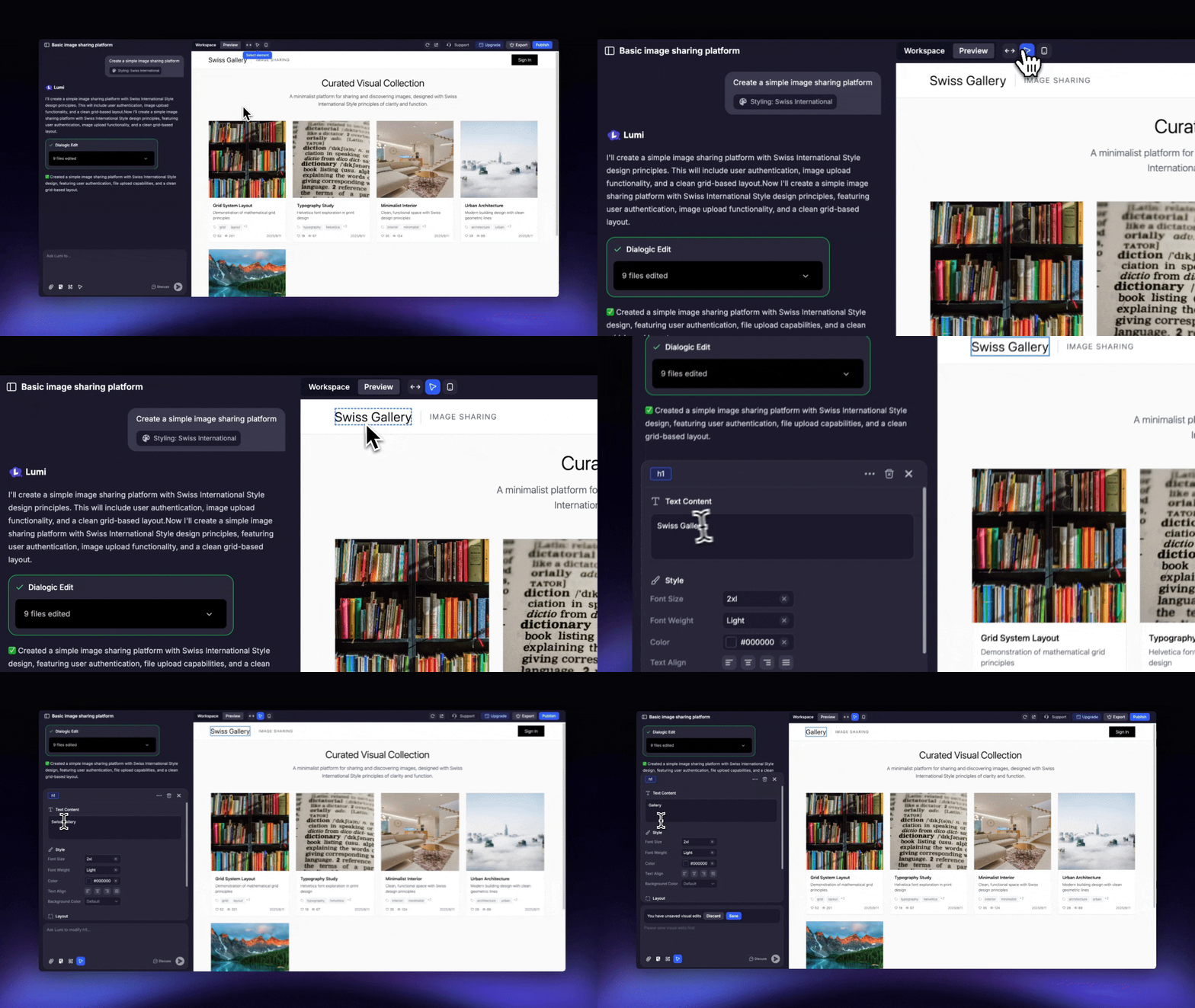 ## When to Use Visual Edits
Visual Edits is ideal for when you want to:
* Change static text or media content on your site.
* Update typography, including fonts, sizes, and styles.
* Modify the colors of text, buttons, or other elements.
* Select a specific element and use a prompt to alter its visual appearance or functionality. Please note that these prompts consume credits just like a standard message.
* Apply AI-powered edits to existing images on your site through prompts. Please note that Edit with AI feature consumes chat credits just like a standard message.
## When to Use Visual Edits
Visual Edits is ideal for when you want to:
* Change static text or media content on your site.
* Update typography, including fonts, sizes, and styles.
* Modify the colors of text, buttons, or other elements.
* Select a specific element and use a prompt to alter its visual appearance or functionality. Please note that these prompts consume credits just like a standard message.
* Apply AI-powered edits to existing images on your site through prompts. Please note that Edit with AI feature consumes chat credits just like a standard message.
 ## How to Use Visual Edits
You can find this tool either in the input box or in the top toolbar in Preview mode.
## How to Use Visual Edits
You can find this tool either in the input box or in the top toolbar in Preview mode.
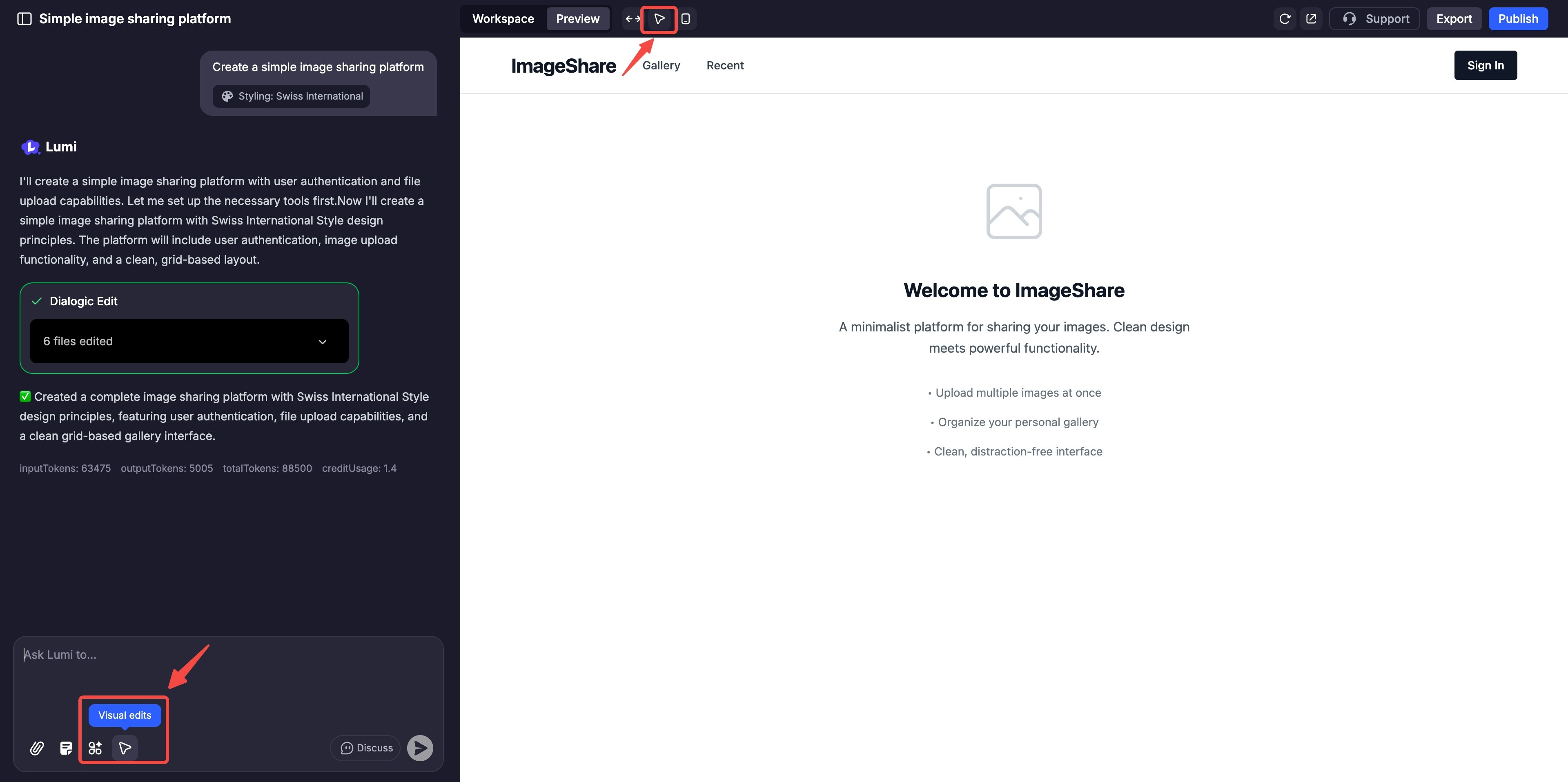 Click the button to enter Visual Edits mode.
Hover over the item you wish to modify—a headline, button, image, or background section—and click to select it.
Click the button to enter Visual Edits mode.
Hover over the item you wish to modify—a headline, button, image, or background section—and click to select it.
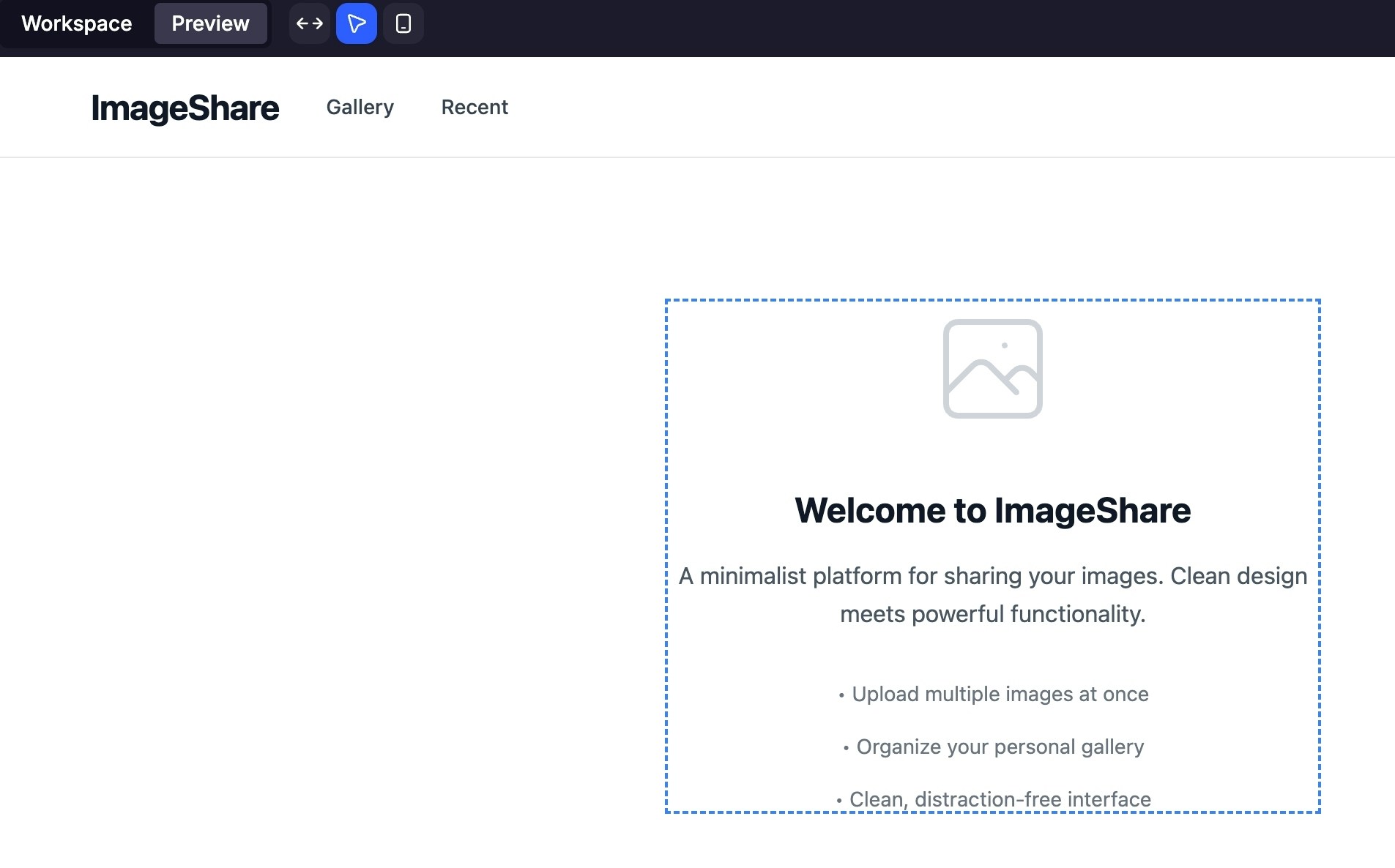 Once an element is selected, either type a command like "Make this heading bold," or use the contextual editor to directly change text, fonts, and colors.
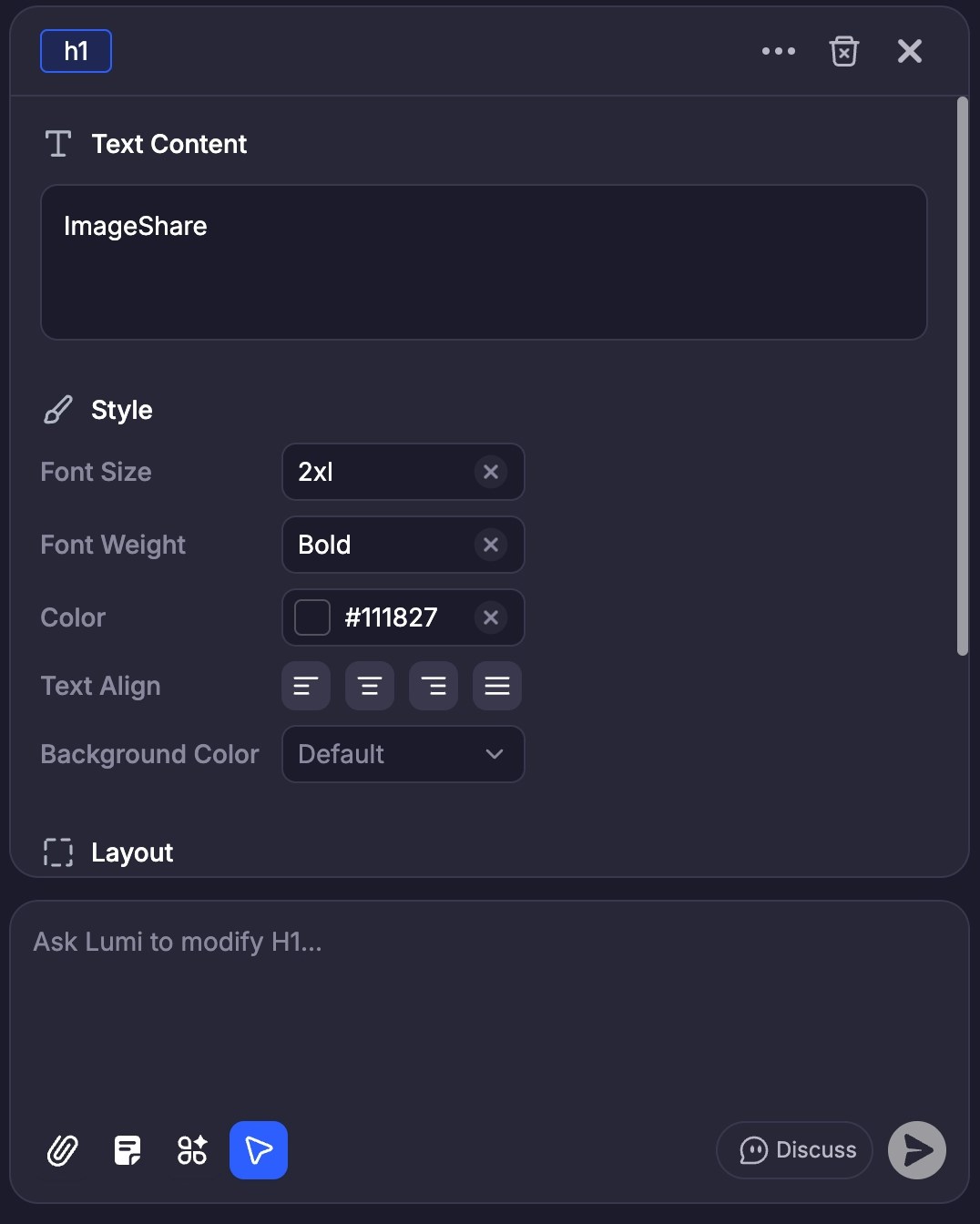 Click "Save" to confirm your changes. Lumi will instantly update the live preview and the corresponding code.