

- “Add a membership plan, with a monthly fee of $9.99…”
- “Selling my consulting services, with a one-time fee of $299…”
A Simple Step-by-Step Example
1
Prepare Your Project
First, prepare a project that is ready for payment integration. Ensure all core functions and pages, like login and key features, are complete before proceeding.
2
Describe Your Payment Requirements
Describe your payment needs, for example: “Implement a membership system via Stripe. Free users get 2 images daily; Pro users pay $0.99/month for unlimited use.”
3
Enter Sandbox API Key
Provide the API key for the Stripe sandbox environment. It is highly recommended to fully test the payment process in the sandbox before going live.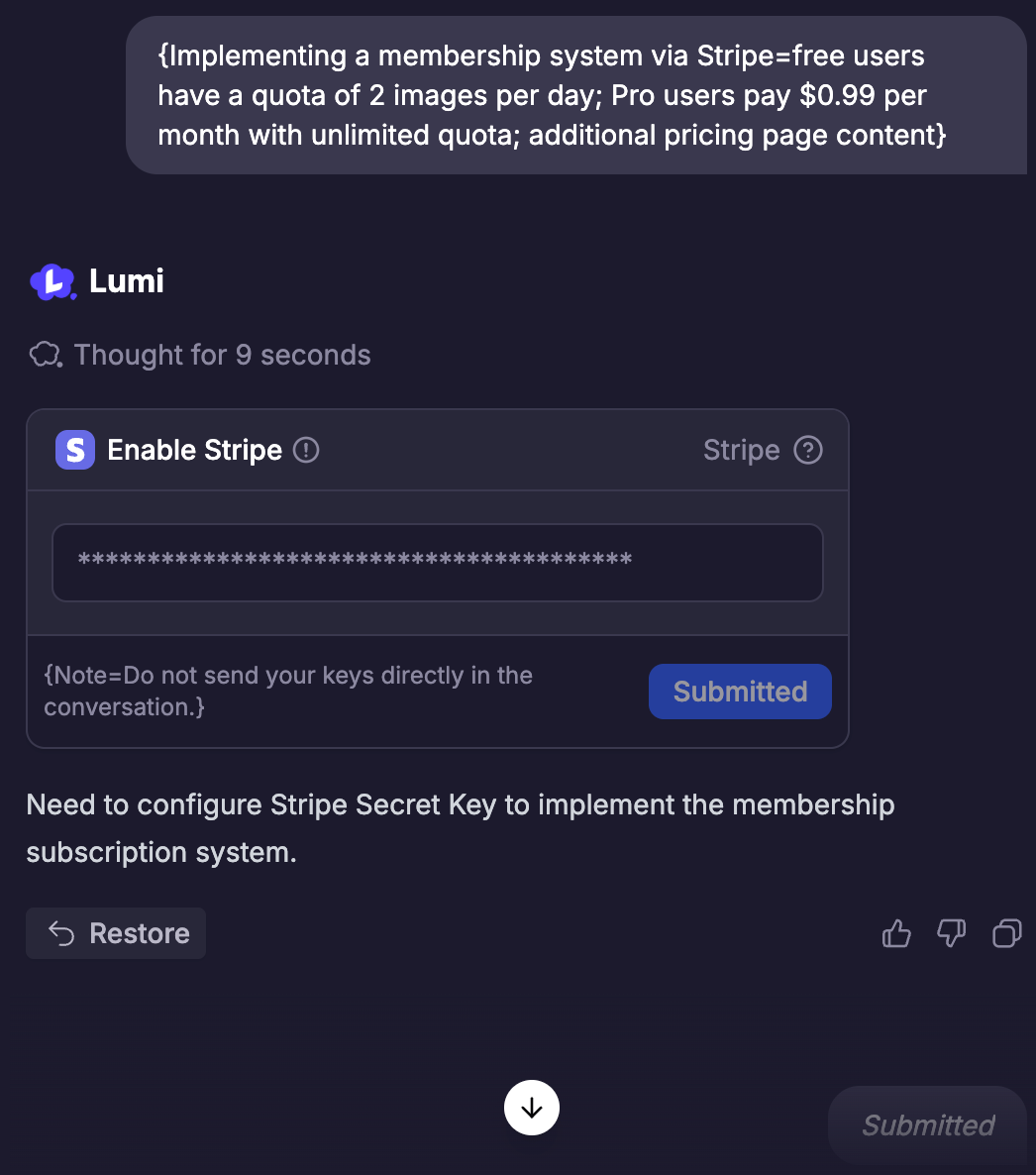
4
Create Products and Prices
Lumi will automatically create the correct products along with their corresponding descriptions, prices, and payment cycles based on your needs. If there are any modifications, you can also inform Lumi through a conversation.Then, Lumi will also help you improve the product information and purchase process in your project.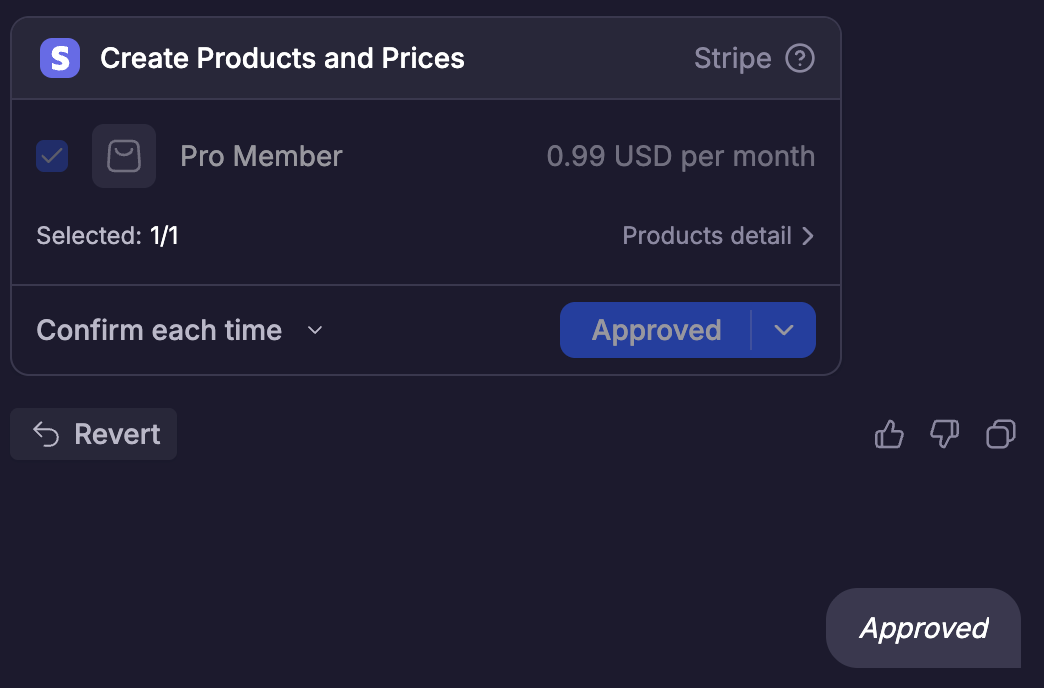
5
Test the Payment Process
After completing the creation of products and payment settings, please test whether the product purchase process meets your expectations, including——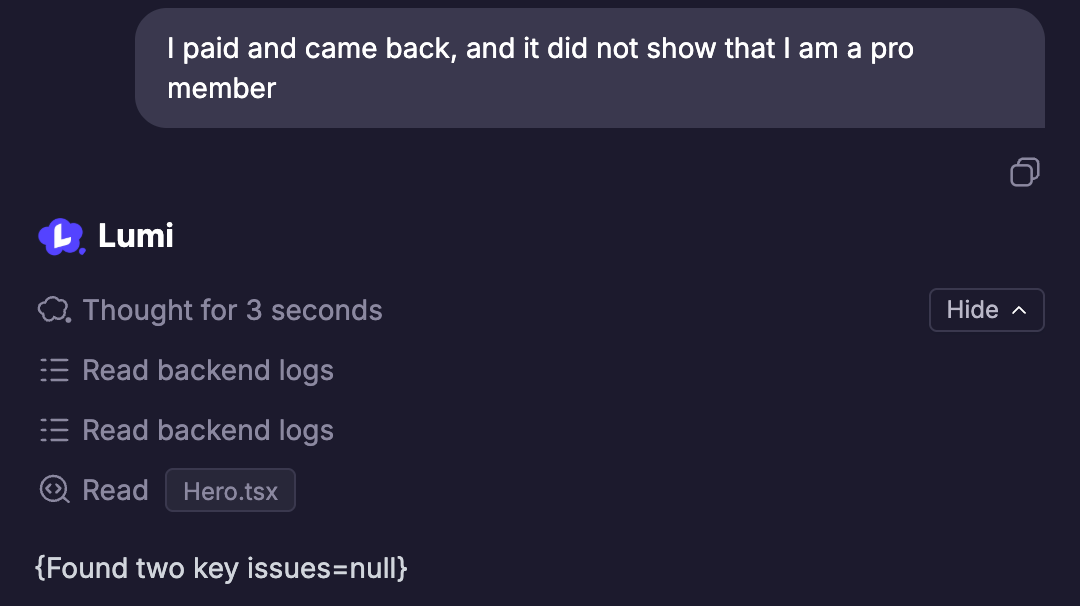
- After clicking “Purchase” on the page, whether it can correctly jump to Stripe’s test payment page
- Whether payment can be completed normally using the test card (4242 4242 4242 4242)
- After successful payment, whether you can see the creation of subscription records in Lumi’s database, and whether the project page displays corresponding purchase records (such as membership emble, purchase history, etc.)
6
Switch to Live Environment
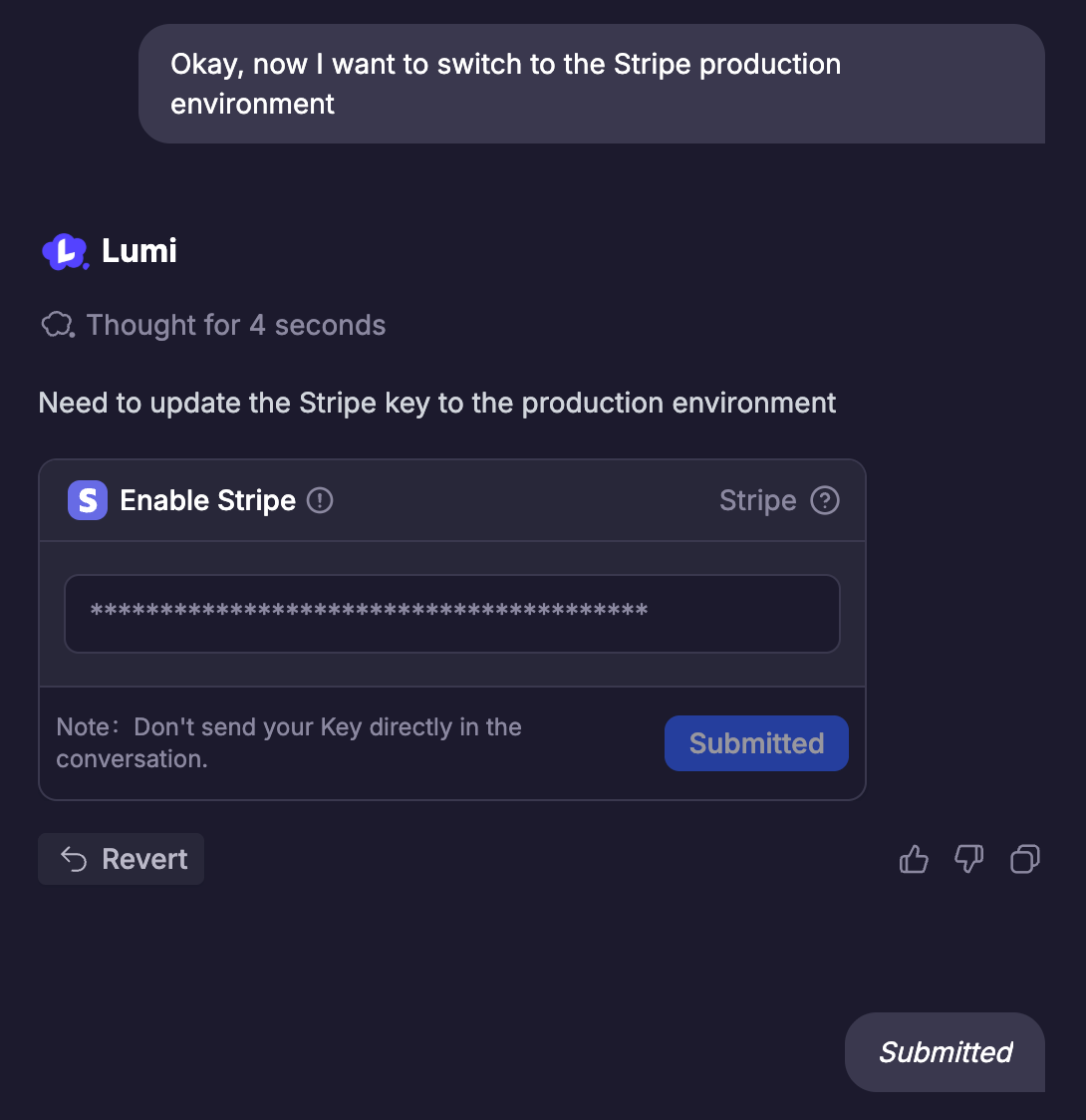
After you have completed testing the payment process, you can ask Lumi to switch to Stripe’s official merchant environment.
- First, you need to register and authenticate a merchant account in accordance with Stripe’s requirements
- Second, switch to the API key for Stripe’s official environment in Lumi
-
Finally, complete the setup step by step according to Lumi’s guidelines
7
Final Test and Launch
- After switching to the official environment, test your payment process again to see if it meets expectations.
- Once everything is ready, launch it and share it with your users!