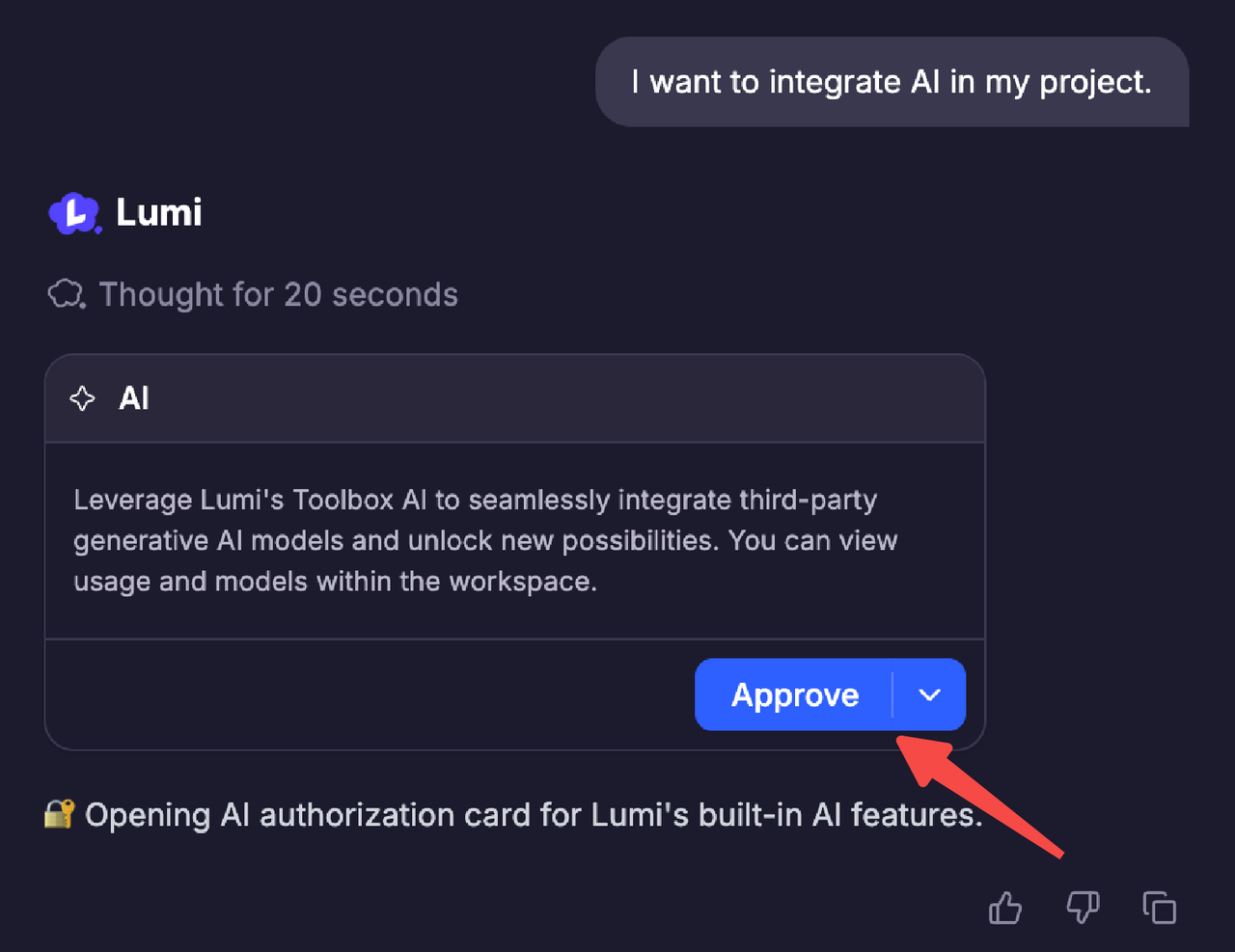
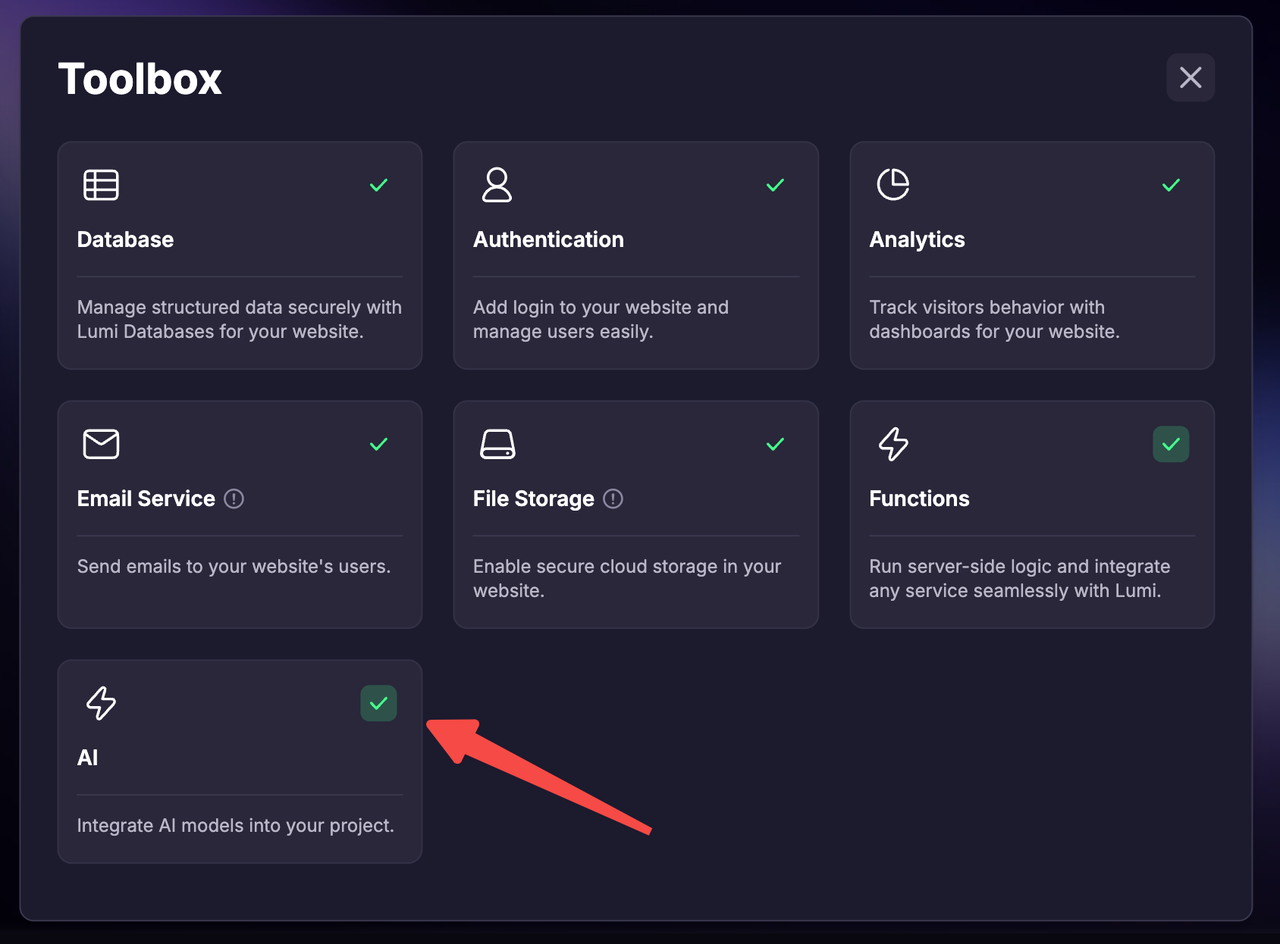
The AI in Lumi’s Toolbox allows you to seamlessly embed large language models (LLMs) into your own projects. Through natural-language prompts, you can easily activate and configure AI capabilities without complex setup steps — making model integration faster, smarter, and more intuitive.
Lumi currently supports multiple models from Google Gemini and OpenAI GPT families. Each model has different performance and pricing tiers to fit diverse use cases:
Model
Tier
Recommended Use
Gemini 2.5 Flash
Mid-tier (Default)
General-purpose assistant for balanced reasoning and efficiency
Gemini 2.5 Pro
High-tier
Advanced reasoning and complex analysis
Gemini 2.5 Flash Lite
Entry-tier
Large-scale, low-latency tasks such as text classification
Gemini 2.5 Flash Image(Nano Banana)
Mid-tier (Visual)
Image generation and creative design tasks
Gemini 3 Pro Image(Nano Banana Pro)
High-tier (Visual)
Create and edit images with high level of precision and control
GPT-5
High-tier
Complex reasoning and decision-making applications
GPT-5 Mini
Mid-tier
Moderate-complexity workflows and automation tasks
GPT-5 Nano
Entry-tier
High-volume, lightweight tasks
GPT-4o
High-tier
Advanced multimodal understanding and high-quality text generation
You can mix and match models in one project — for example, using Gemini for fast responses and GPT for creative generation.
By default, AI capabilities are disabled. You can activate them in one of three ways:
Via conversation — when you ask to integrate or use AI features, Lumi will prompt you to enable AI.
From the Toolbox on the homepage
From your workspace
When you enable AI without specific requirements, Lumi automatically integrates the default model (Gemini 2.5 Flash). You only need to request it in the conversation to switch models.