

Working with SEO
How SEO AI Works for You
Lumi’s SEO AI boosts your website’s Google search rankings and drives free organic traffic, with no advanced SEO expertise needed. Built on the proven 75/20/5 SEO framework — 75% content, 20% keyword & competitor strategy, 5% foundational technical optimization — the tool runs a full content audit, technical compliance check, and competitor benchmarking to uncover high-traffic keyword opportunities. It delivers a complete optimization plan with prioritized fixes, ready-to-use code snippets, and targeted keyword recommendations, so you can implement changes instantly and lift your search rankings fast.How to trigger SEO optimization for your project
You can trigger SEO optimization in Lumi in two ways:- Trigger via dialog: Directly enter SEO-related requirements in the dialog box, such as “Please optimize the SEO of my website”, and Lumi will automatically start the SEO optimization process for your project.
-
Trigger via Market panel: Go to the Market module in the workspace, find the SEO tool, and click the one-click trigger button. Lumi will automatically send the instruction “Please help me optimize the SEO of my website” to the main dialog, and seamlessly connect to the full SEO optimization process. You can also view detailed function introduction and optimization cases on the SEO tool subpage.
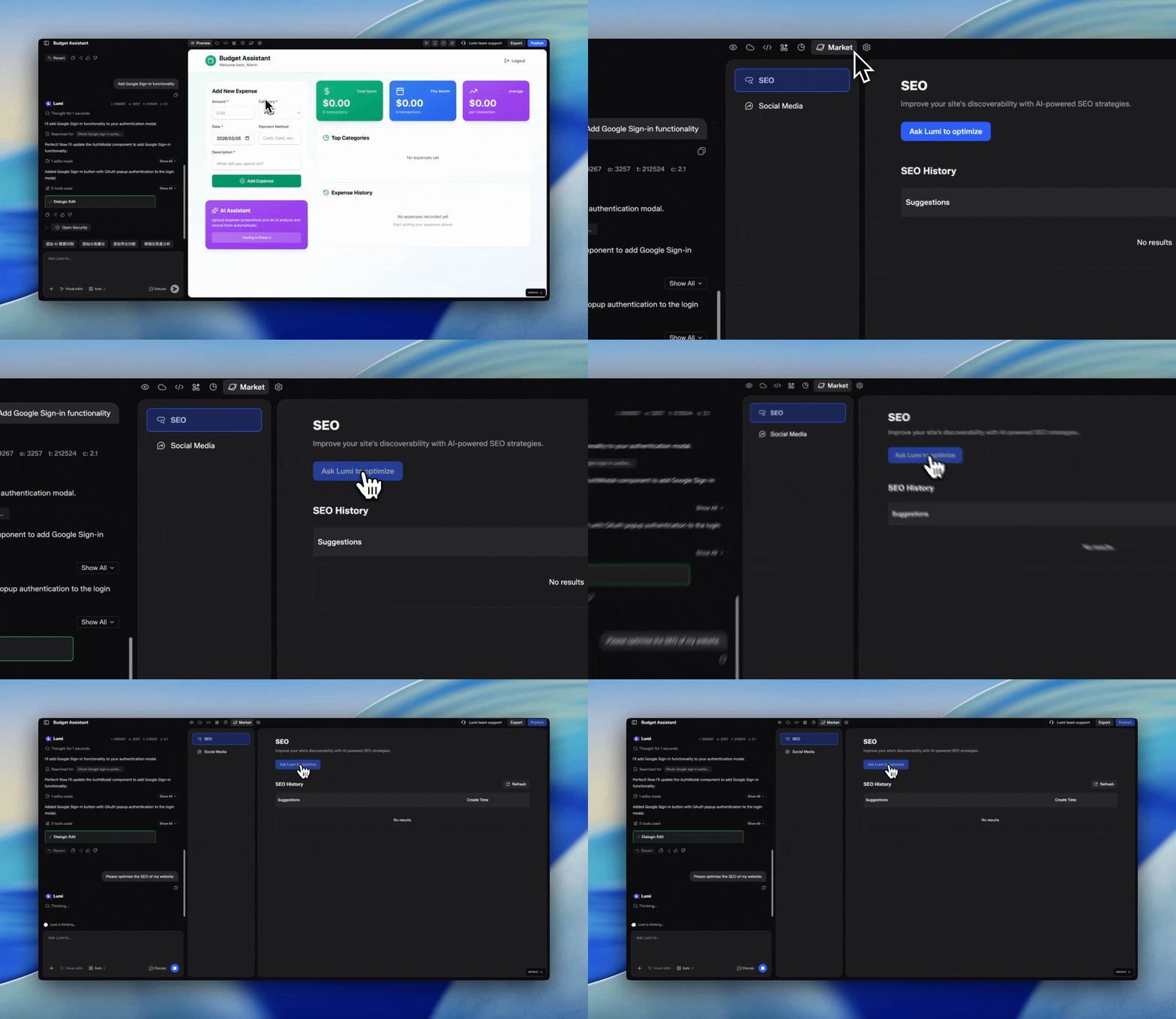
SEO optimization workflow
The SEO optimization process is divided into two core phases: planning and execution.- Analysis & Planning phase When you trigger SEO optimization, Lumi will first call the professional SEO agent to analyze your project, and display the analysis thinking and process in the dialog. After the analysis is completed, Lumi will generate an SEO Plan Card, which contains a clear and actionable SEO optimization plan for your project.
-
Execution phase
You can choose the corresponding operation on the SEO Plan Card to enter the execution phase:
· Approve the plan: After you click the approve button, Lumi will take the plan content in the card as a prompt,send it to the main dialog, and the main agent will modify the code in build mode to complete the full-stack SEO optimization for your project.
· Reject the plan / No operation: If you reject the plan, or do not perform any operation on the card, it will be deemed as rejecting the optimization plan, and Lumi will not execute the SEO code modification.
 Whether you adopt or reject the plan, Lumi will re-analyze your project and generate a brand new SEO plan when you trigger SEO optimization next time.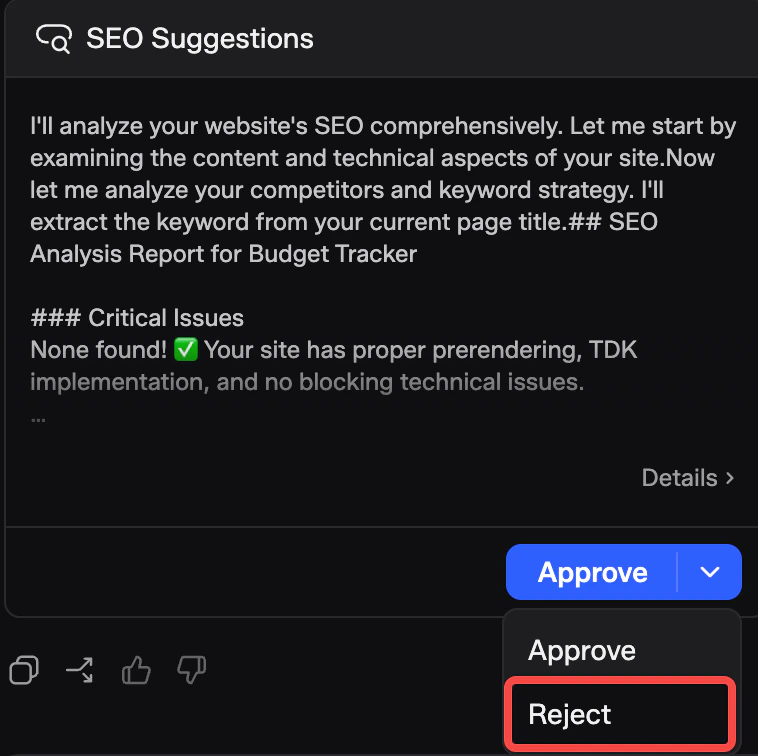
Edit your SEO optimization plan
The SEO optimization plan in the Plan Card supports manual editing. You can directly modify the plan content in the card according to your needs. Note that the plan content can only be edited manually in the card, and does not support modification directly in the dialog.
View SEO optimization history
You can view all your historical SEO optimization suggestions and their corresponding creation time in the SEO History panel. Click the Refresh button to update and view the latest optimization records in real time.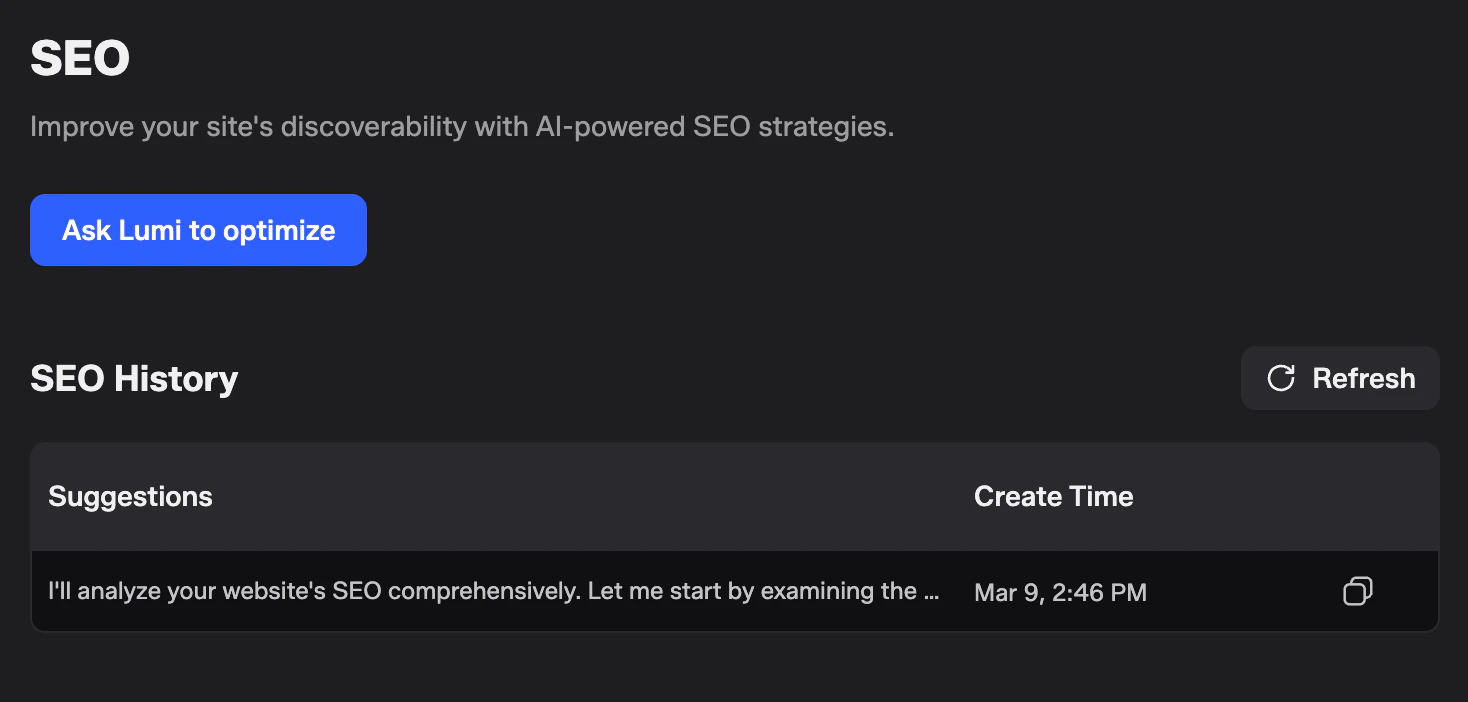
Edge case handling
- Revert operation: If you use the Revert function to roll back the SEO-related code modifications, the corresponding SEO optimization history records will still be retained in the SEO History panel.
- Fork & Remix operation: If you fork or remix a project version that already has SEO history records,the new project generated by fork or remix will not inherit the original SEO history records.