

Working with Social Media
How to trigger the Social Media tool for your project
You can launch the Social Media tool in Lumi in two ways:- Trigger from the project published page: After your project is successfully published, click the “Generate social media content through AI” button to directly launch the Social Media tool. The tool will automatically pull the core information of the current project (including project name, description and summary) and pre-fill it into the generation configuration.
-
Trigger from the Market panel: Go to the Market module in the workspace, find the Social Media tool, and click to enter. You can select the target project, and the tool will automatically pull the relevant information of the project to complete the pre-fill configuration.
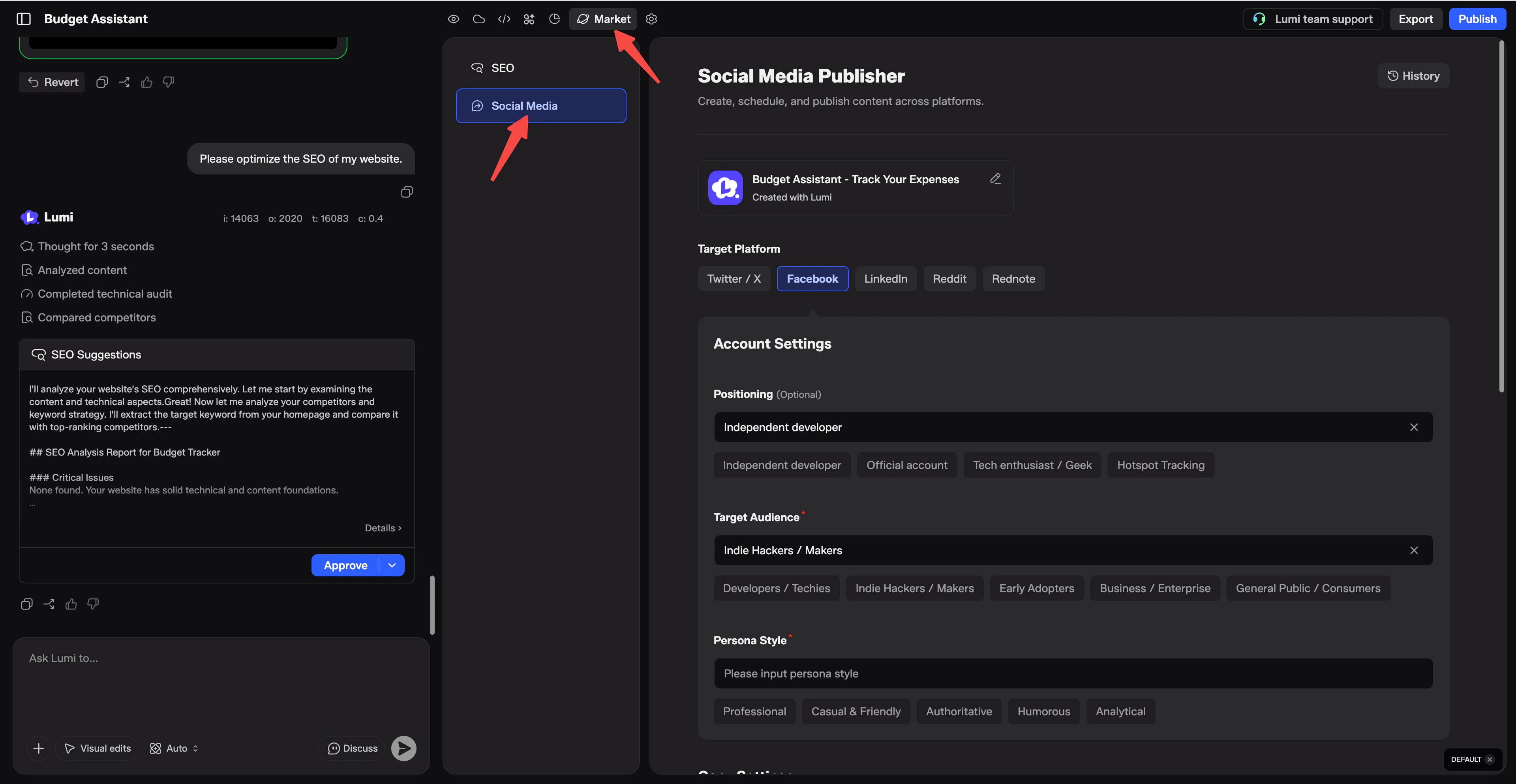
Configure your social media content generation
You can fully customize the generated content through the following configuration items, to make the social media material perfectly fit your needs:-
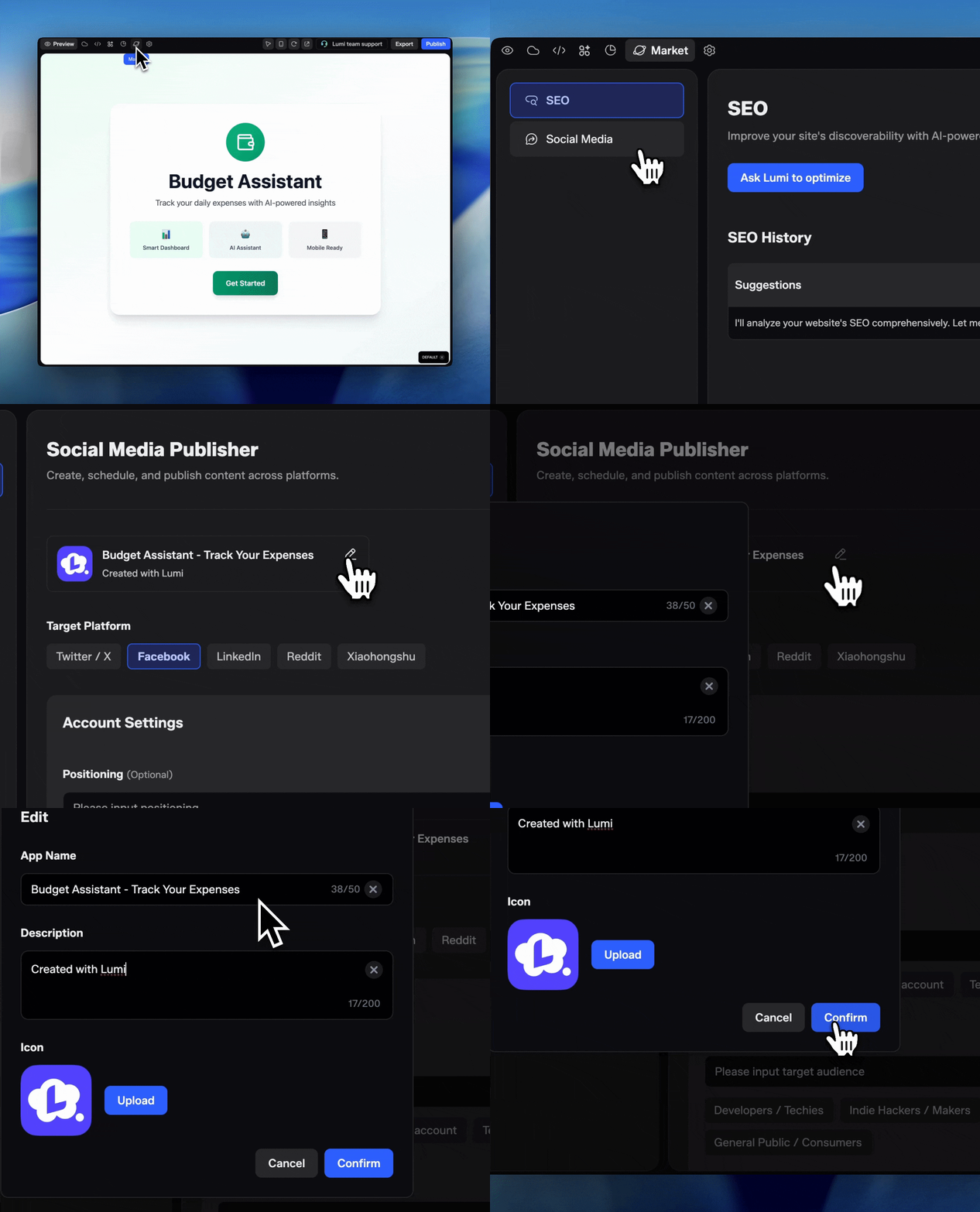
Project Information: The tool will automatically pull and pre-fill the core information of your project, including project name and project description. Both items support direct editing in the tool without jumping to the project editing process.
-
Copywriting Configuration: You can complete the full customization of the generated copy through the following items: Target Platform, Account Settings, Copy Settings and Language.
-1.png?fit=max&auto=format&n=TEN4YHkVfB8kK6Oe&q=85&s=5e345bc5817c0c1214187fd5cde388d2)
-1.png?fit=max&auto=format&n=TEN4YHkVfB8kK6Oe&q=85&s=c5fc4a62767e1bf1abdb97b4ba2c2eba)
-1.png?fit=max&auto=format&n=TEN4YHkVfB8kK6Oe&q=85&s=feb0e72fe1f8b69fc6cfe8bd564ebce7)
-
Image Generation Configuration: You can turn on the “Generate image?” switch to enable the AI image generation function, and the tool will generate supporting images that match the copy content and your project while generating the copy.
-1.png?fit=max&auto=format&n=TEN4YHkVfB8kK6Oe&q=85&s=94a6ead656206f9e2c92109f786619ee)
Generation workflow & result operation
- After completing the configuration, submit the generation request, and the tool will generate customized social media copy and supporting images based on your settings and project information. Note that each generation will consume a certain amount of Resource Point.
- After the generation is completed, you will enter the result page, where you can view the full generated copy, and support one-click copy of the content.
- For the generated images, you can view the preview on the result page, support one-click copy and download of the images. You can also enter the custom image editing page, adjust the image description, use reference images, and regenerate images according to the copies and your needs.
- The tool supports one-click sharing to compatible social platforms. The system will automatically populates the generated copy and matching images into the corresponding platform’s publishing interface, enabling one-click publication without manual copying and pasting.
View generation history
- You can view all your historical generation records of the Social Media tool on the homepage of the tool, including the generation scenario, target platform, creation time and other information.
- Click on any historical record, you will jump to the corresponding result page, and you can view, copy and reuse the previously generated content.